https://discord.com/channels/1202787457 ... 7592805396Discord wrote:Some changes are coming to the way your custom QR Codes with perma links like the one put on `github` pages, are processed.
Starting from zepp app `10.8.5` when generating QR Codes from custom tools like `QRCoder` or manually assembling a QR, you will have to make sure that your QR Code is built in `preview` mode, not production. If you don't know how to do it, or can't recompile the old watch face, you should be able to modify this value inside the `app.json` of the said watch face archive.
```json```Code: Select all
"packageInfo":{"mode":"production",
has to be
```json```Code: Select all
"packageInfo":{"mode":"preview",
Also, you will have to use the
protocol for your watch faces. Not theCode: Select all
watchface://.../..
which is used for the mini apps.Code: Select all
zpkd1://.../...zpk
If you do not follow the protocol correctly, you will see the `"Only preview packages are supported"` message, which some of you have encountered in zepp app `10.8.0`.
I'm not sure if this issue will affect older QR codes.
Just sharing this information.
Discord (𝗦𝗶𝗹𝘃𝗲𝗿) wrote:I have confirmed that starting from `10.8.5` the direct links should be handled the same way as before, and you don't have to follow our official protocol to a T. Also, the `preview` / `production` flag will be ignored when using the direct link, so you don't have to bother with it.
The devices that can use this method are as follows:
- Amazfit Active
- Amazfit Active 2
- Amazfit Active 2 (Square)
- Amazfit Active Edge
- Amazfit Band 7
- Amazfit Balance
- Amazfit Balance 2
- Amazfit Bip 5
- Amazfit Bip 5 Unity
- Amazfit Bip 6
- Amazfit Cheetah
- Amazfit Cheetah Pro
- Amazfit Cheetah (Square)
- Amazfit Falcon
- Amazfit GTR 3
- Amazfit GTR 3 Pro
- Amazfit GTR 4
- Amazfit GTR mini
- Amazfit GTS 3
- Amazfit GTS 4
- Amazfit GTS 4 mini
- Amazfit T-Rex 2
- Amazfit T-Rex 3
- Amazfit T-Rex 3 Pro
- Amazfit T-Rex Ultra
And it is expected that other devices in the future will also use ZeppOS.
- Amazfit Active 2
- Amazfit Active 2 (Square)
- Amazfit Active Edge
- Amazfit Band 7
- Amazfit Balance
- Amazfit Balance 2
- Amazfit Bip 5
- Amazfit Bip 5 Unity
- Amazfit Bip 6
- Amazfit Cheetah
- Amazfit Cheetah Pro
- Amazfit Cheetah (Square)
- Amazfit Falcon
- Amazfit GTR 3
- Amazfit GTR 3 Pro
- Amazfit GTR 4
- Amazfit GTR mini
- Amazfit GTS 3
- Amazfit GTS 4
- Amazfit GTS 4 mini
- Amazfit T-Rex 2
- Amazfit T-Rex 3
- Amazfit T-Rex 3 Pro
- Amazfit T-Rex Ultra
And it is expected that other devices in the future will also use ZeppOS.
I'd like to update you on file uploading and QR code generation. In Editor Version 18.0 Final of Sasha's Watch Face Editor (for Amazfit watches on ZeppOS) now includes a feature to assist with file uploading and QR code generation for use APP Zepp to install with QR. This option greatly facilitates watch face creators who want to test their watch faces before publishing. Files are hosted on three platforms (littlebox (non-permanent), Filepost, GitHub).
For more information on how to use these features, please see in the program editor on following tabs:
Testing --> Get APIkey (FilePost.dev)
Testing --> instruction (GitHub)
Editor Version 18 also includes a feature for capture page of simulator , but I won't elaborate further here as it's not relevant to this topic. However, you can find more details in the program.
Preview
- 18.png (614.45 KiB) Viewed 16464 times
Method to upload your work via "amazfitwatchfaces"
I would like to inform additional news. ( 13-01-2024)
I noticed that https://amazfitwatchfaces.com Added a section for the "Amazfit Balance, GTR3 , GTR4 , GTS3/4 ..... and many more models that use ZeppOS" in the "File Download area". That add in section is a QR code that can be used with the Zepp App.
That means you just upload "watchface.zip" the watch face you want to the web and you will get a QR code ready to use with the Zepp App.
link to upload area : https://amazfitwatchfaces.com/upload
Youtube how to use zepp app
Enable Developer mode on App Zapp Version 9.12.1
- devmode.png (221.84 KiB) Viewed 30720 times
Spoiler
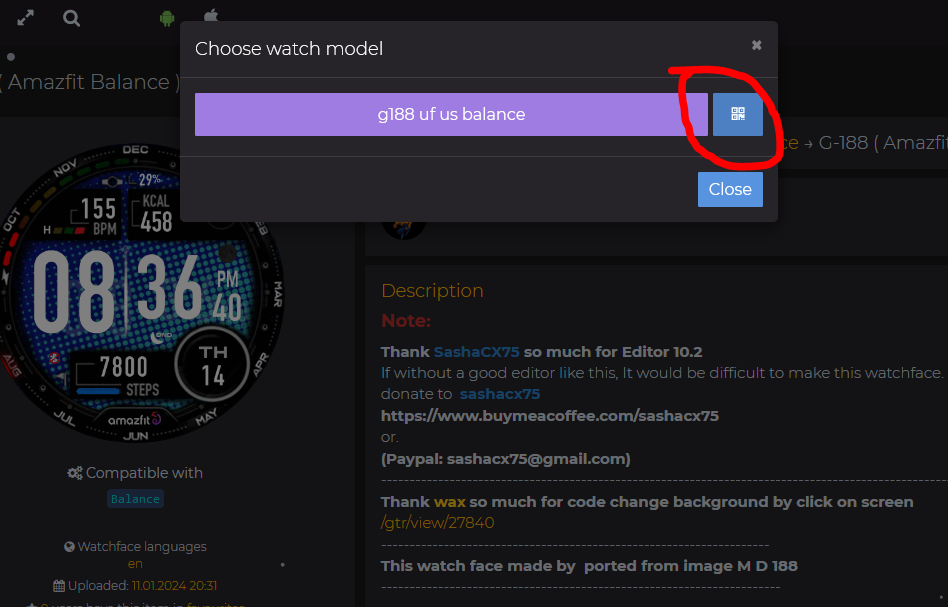
Preview test use 9.15.2 install watchface to Bip6
- PreviewAnimation2.gif (2.56 MiB) Viewed 27793 times
Generating QR code for installation Once you generate it, the QR code will only be valid for a certain period of time and cannot be stored for long-term use. Therefore, if you have generated it for a long time, please refresh and re-generate it.
.
.
In the following section This is the step in creating a file to sync without going through the amazfitwatchfaces web. for use in personal testing There may be a number of steps that need to be understood. If you want simplicity, please use the method to upload your work via amazfitwatchfaces is the best
First of all, let me know that All these steps I have tested by myself. and actually works However, if there is any part that is incorrect, I apologize here.
Steps for creating a QR code for syncing the watch face to "Balance" or "ZeppOS Device" by using App Zepp in developer mode.
ZPK
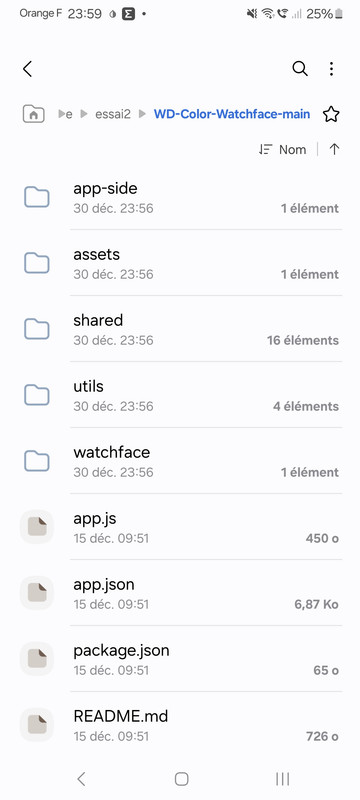
1. Take your dial.zip file and pack it in ZPK format.
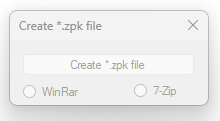
In this step you can use the program CreateZPK+2 in action
Download Program
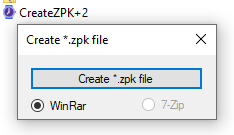
 CreateZPK+2.zip
- (48.39 KiB) Downloaded 1559 times
WinRAR :
https://www.rarlab.com/download.htm
7zip:
https://www.7-zip.org/download.html
ืNote :
The utility searches for WinRAR by the path "C:\Program Files/WinRAR/WinRAR.exe" and 7-Zip by the path "C:\Program Files/7-Zip/7z.exe". If you have a different path to the installed archiver, the utility will not see it.
if you do not want to install compress program please try this version
- CreateZPK.zip
- (90.62 KiB) Downloaded 1510 times
When opening the program, press [create .zpk] and select the dial.zip file that you want to pack as .zpk and press open.
When finished, you will get a .zpk file that is ready to be uploaded to hosting or a file hosting website that can be created or copied. Direct download url"
2. Then take the .zpk file and upload it to a file sharing or hosting website that can be done in zpkd1:// format.
In this case , I use pcloud.com to host files.
But the share link from the web will not be a "direct download url".
If you use pcloud.com, after uploading the file, you must download the file back first, and when the download is complete, copy the dowload link.
from your web browser, in this case I'm using Firefox once the download is complete. you can press ctrl+j to open the "library download" windows and right click on the desired file then select copy link.
Direct Download url obtained from pcloud.com will be valid for no more than 1 hour.
If the specified time is exceeded, repeat the process to create a new direct download.
Or you can use
permanent :
catbox.moe
storage time limit :
litterbox.catbox.moe
to upload the file
This website will generate a "Direct Download" URL for you.
The obtained URL can be used for processing. But someone say that in some regions some problems may be encountered. But from what I tested it can be used. and seems more convenient than pcloud.com
If you use hosting or another file hosting website, you may need to study and test this part yourself.
after upload take the "direct download" url and edit it to the format zpkd1://.
For example, if your "direct download" url is
Code: Select all
https://xxxx.com/watchface/xxxx.zpkCode: Select all
zpkd1://xxxx.com/watchface/xxxx.zpkTo create a QR code, you can use the program zint to do it.
You can download the program at
https://sourceforge.net/projects/zint/
Spoiler
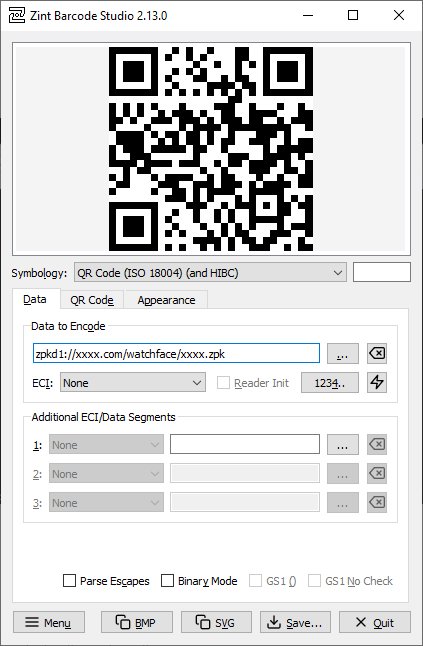
QR Code (ISO 18004) (and HTBC)
Alternatively, you can use the QR Code Generator program provided by SashaCX75 to create a QR Code for installation.
The advantage of this program is that it can instantly change the link
Http://................ to zpkd1://................ So, when you receive the link http://......, simply copy and paste it into the URL field and you'll instantly get a QR Code.
QRCode+zpkd1-link Version 1.1 by SashaCX75
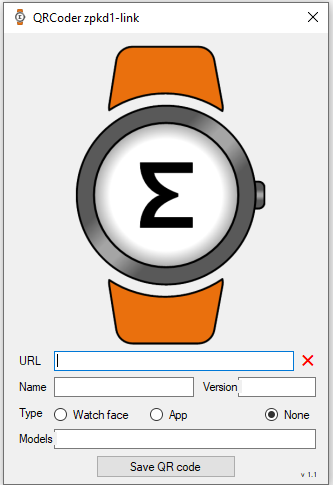
Note:
Some users reported that Windows Security detected the virus in QRCode+zpkd1-link Version 1.1.
But Sasha confirmed that it not a virus, and other antivirus programs didn't detect it as a virus.
I believe Windows Security might be sensitive to certain program activities. But I personally believe the program is safe.
However, if you're unsure, you can use another program to generate the QR code.
- QRCoder+zpkd1-link1.1.zip
- (217.3 KiB) Downloaded 752 times
A tool for uploading .zpk files to catbox and generating a QR code for installation in a single step.
( By taw_bip )
viewtopic.php?p=22191#p22191
A tool for uploading .zpk files to catbox and generating a QR code for installation in a single step with GUI.
viewtopic.php?p=22231#p22231
3. Then go to zepp and select your Device .
Then select the developer mode heading.
Developer Mode ( 24-08-2025 )
- scanQRsmall.png (135.59 KiB) Viewed 31240 times
https://docs.zepp.com/docs/guides/faq/developer-mode/
or see this clip
https://www.youtube.com/shorts/68NRZxrU4AY
Enable Developer mode on App Zapp Version 9.12.1
- devmode.png (221.84 KiB) Viewed 30720 times
If you find Developer mode, proceed as follows.
- Press Device ( and select your Device )
- select General
- select Developer Mode
- Press the + sign in the top right corner.
- select SCAN
- Scan the QR code you created earlier.
Wait until the installation is completed. When finished, the watch face will be synced to the watch.
Sometimes the scan may not be successful, so try repeating it again, but if more than 4 times it still isn't successful, it means You may have done something wrong or the website you are using to store files may not support it. Or the QR Code you generated has expired, please try again.
Hopefully it will be useful for those who are looking for this method.
My Note :
When naming resource files, you should use normal characters. Do not use special characters when naming them because they may affect sync performance.