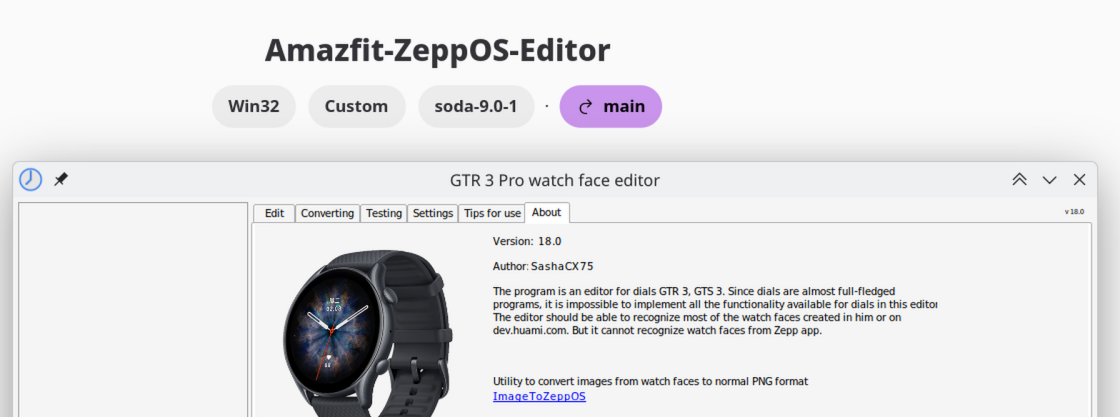
Step-by-step guide: Running the Amazfit Watch Face Editor (ZeppOS) on Fedora / Linux with Bottles
I am currently using Fedora 44 KDE Plasma. The older Wine / winetricks guide still works in principle, but for me the easiest current method is using
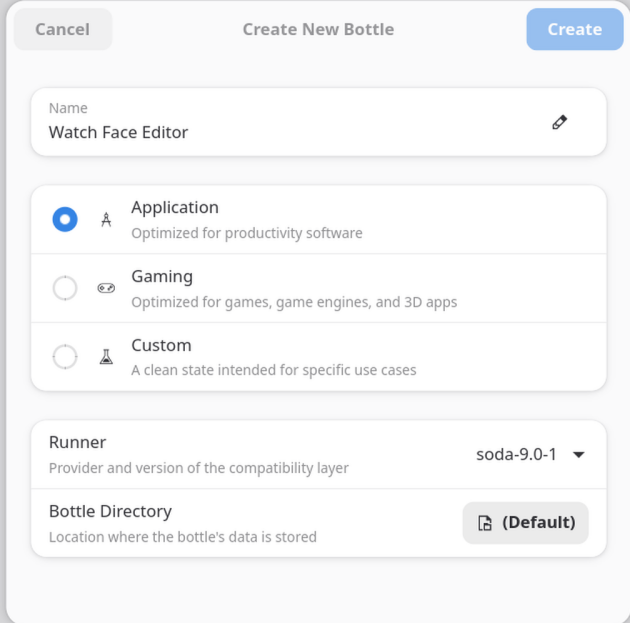
Bottles as a Flatpak.
This is the setup that worked for me.
Tested bottle configuration
- Bottles package: Flatpak
- Bottle name: Amazfit-ZeppOS-Editor
- Environment tested: Application
- Architecture: win32 / 32-bit
- Windows version: win11
- Runner: soda-9.0-1
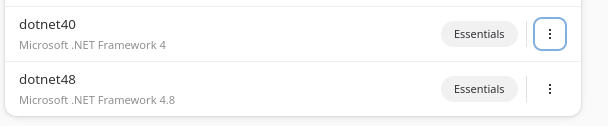
- Installed dependencies: dotnet40, dotnet48
Important note about the architecture
I tested the editor with the
Application environment and it worked for me.
My working bottle is
win32 / 32-bit. I am not sure whether Bottles always creates Application bottles as 32-bit by default, so if Bottles gives you an architecture option, choose
win32 / 32-bit.
1. Install Bottles
Install Bottles from Flathub:
https://flathub.org/apps/com.usebottles.bottles
You can also find the official Bottles documentation here:
https://usebottles.com/docs
After installation, start Bottles once and let it finish its initial setup / component downloads.
2. Create a new bottle
Create a new bottle.
Recommended settings:
- Environment: Application
- Architecture: win32 / 32-bit, if Bottles asks for the architecture
- Runner: The default Soda runner should be fine. My working bottle uses soda-9.0-1.
I would recommend using a fresh separate bottle only for the Amazfit / ZeppOS editor.
3. Install the required .NET dependencies
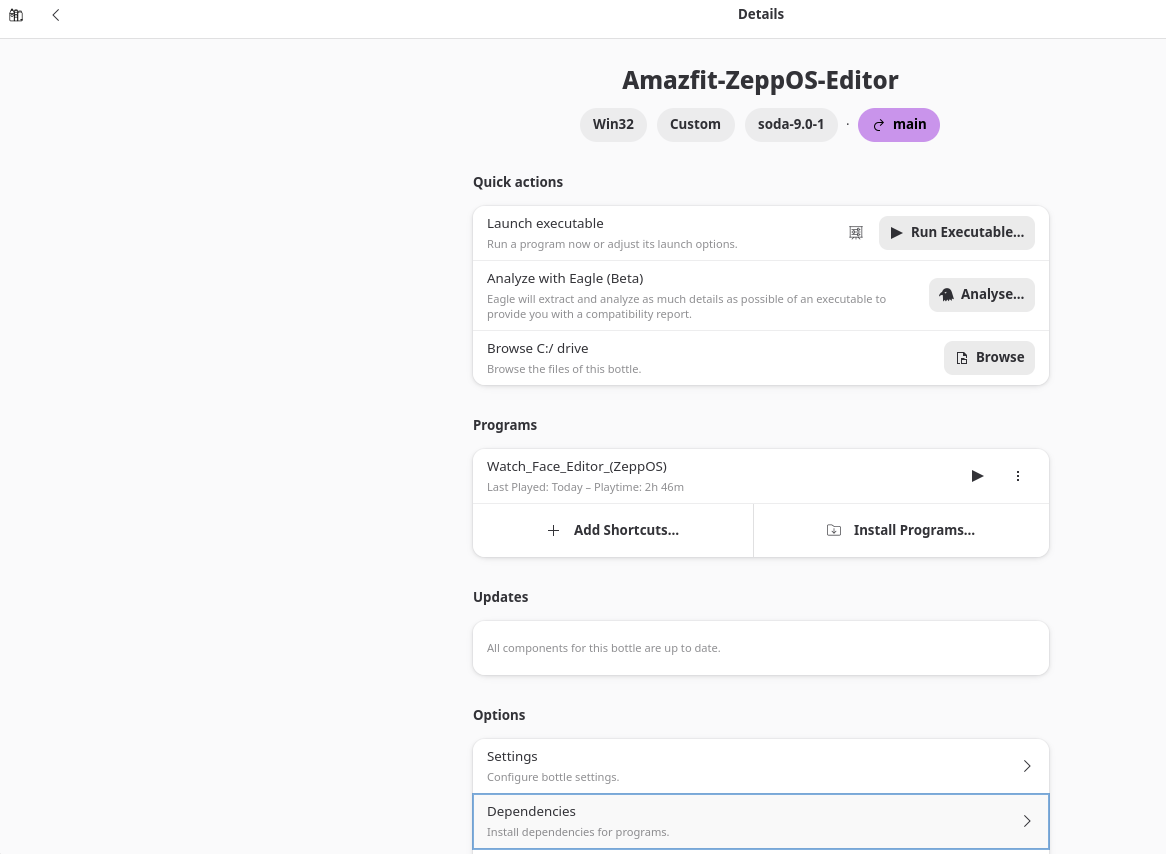
Open the bottle and go to:
Search for and install:
I installed
dotnet40 first and then
dotnet48.
Wait until both dependency installations are finished. Do not interrupt the installers.
Important: The Watch Face Editor uses Microsoft .NET Framework. Without these dependencies, the program may not launch.
4. Extract the Watch Face Editor
Download the Watch Face Editor ZIP from the original editor thread.
Extract the complete ZIP file. Do
not run the program directly from inside the ZIP archive.
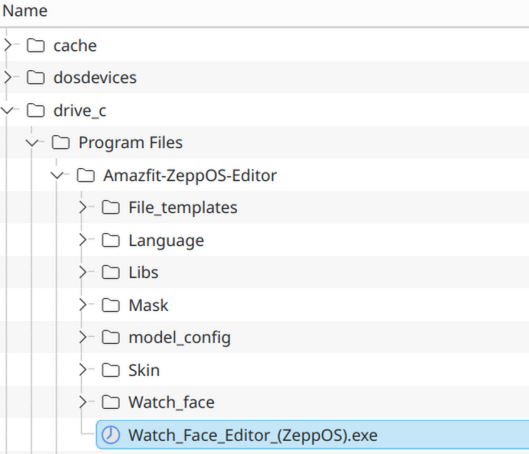
Keep the complete folder structure. The extracted folder should contain files/folders such as:
Code: Select all
File_templates
Language
Libs
Mask
model_config
Skin
Watch_Face_Editor_(ZeppOS).exe
In Bottles, open the bottle and choose:
Then copy the complete extracted editor folder into the bottle's C: drive.
For example, I used:
Code: Select all
C:\Program Files\Amazfit-ZeppOS-Editor
The executable should then be located at something like:
Code: Select all
C:\Program Files\Amazfit-ZeppOS-Editor\Watch_Face_Editor_(ZeppOS).exe
This is not necessarily the only possible location, but it worked for me and keeps all program files together.
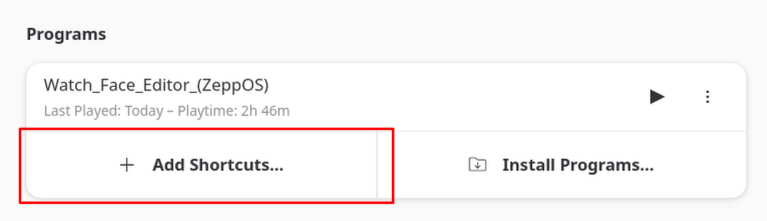
6. Add the executable as a shortcut
In the bottle, go to the
Programs section.
Click:
Select the editor executable. In my setup it is here:
Code: Select all
C:\Program Files\Amazfit-ZeppOS-Editor\Watch_Face_Editor_(ZeppOS).exe
After that, the editor should appear in the Programs list.
7. Start the editor
Launch it from the Programs list inside Bottles.
If it starts correctly, you can also create a desktop/menu shortcut from Bottles later.
Troubleshooting
If the program does not start:
- Make sure the bottle is win32 / 32-bit.
- Make sure dotnet40 and dotnet48 are installed in the same bottle.
- Make sure you copied the complete extracted editor folder, not only the .exe file.
- Make sure the complete editor folder is inside the bottle's C: drive. In my setup I used:
Code: Select all
C:\Program Files\Amazfit-ZeppOS-Editor
- If a .NET installation failed, it is usually better to delete the bottle and create a fresh one instead of trying to repair a broken one.
- If it still crashes or closes immediately, use Bottles' logging / analysis option or provide the exact error message/log. "It does not work" is unfortunately not enough to diagnose the issue.
AI assistance note
This guide was written by me based on my own testing. I used an AI assistant to help structure, clarify and format the instructions. The actual setup was tested manually on my system.
 Step-by-step setup process
 You’ll need to go through several Microsoft .NET installers (4.0 through 4.8). Accept all licenses and click “Finish” each time. Do not install optional extras.
 Installing the Watch Face Editor
 How to start the editor
 Summary
 Good
Good