I am looking for someone with a BIP 5 who can test the WF I have created.
This was created for my nephew.
Here is the link: LINK removed
Clicking on the 3 colored lines on the left should change the color, including the LOGO of some soccer teams.
Clicking on the logo at the bottom should allow you to choose between LOGO, MOON PHASE, and SECONDS.
It would be great if someone could test this for me, as I don't want to send my nephew a half-finished, non-functional WF.
Thank you very much.
-
- Administrator
-
-
Support Ukraine
If you experience any problems with the forum (it is not visible, there is no way to post messages, or some functionality does not work), please let us know. If you have problems with registration or you did not receive confirmation letter, let us know and we will activate your account manually.
If you get an "The submitted form was invalid. Try submitting again" error, delete cookies, then try again.
Test WF BIP 5
Forum rules
When adding a new topic, use the template: Topic title [device name]
For example: How to create watch face [Bip U]
All communication in this branch should only be in English.
When adding a new topic, use the template: Topic title [device name]
For example: How to create watch face [Bip U]
All communication in this branch should only be in English.
-
Lattenknaller
- Posts: 157
- Joined: 09 Aug 2022, 08:43
- Location: Hamburg
- Has thanked: 60 times
- Been thanked: 132 times
- Contact:
-
asoo
- Posts: 2146
- Joined: 03 Jan 2019, 01:48
- Location: ͼͽ Thailand ͼͽ
- Has thanked: 414 times
- Been thanked: 2071 times

Lattenknaller wrote: 26 Aug 2025, 13:56I am looking for someone with a BIP 5 who can test the WF I have created.
This was created for my nephew.
Here is the link: LINK removed
Clicking on the 3 colored lines on the left should change the color, including the LOGO of some soccer teams.
Clicking on the logo at the bottom should allow you to choose between LOGO, MOON PHASE, and SECONDS.
It would be great if someone could test this for me, as I don't want to send my nephew a half-finished, non-functional WF.
Thank you very much.
Preview
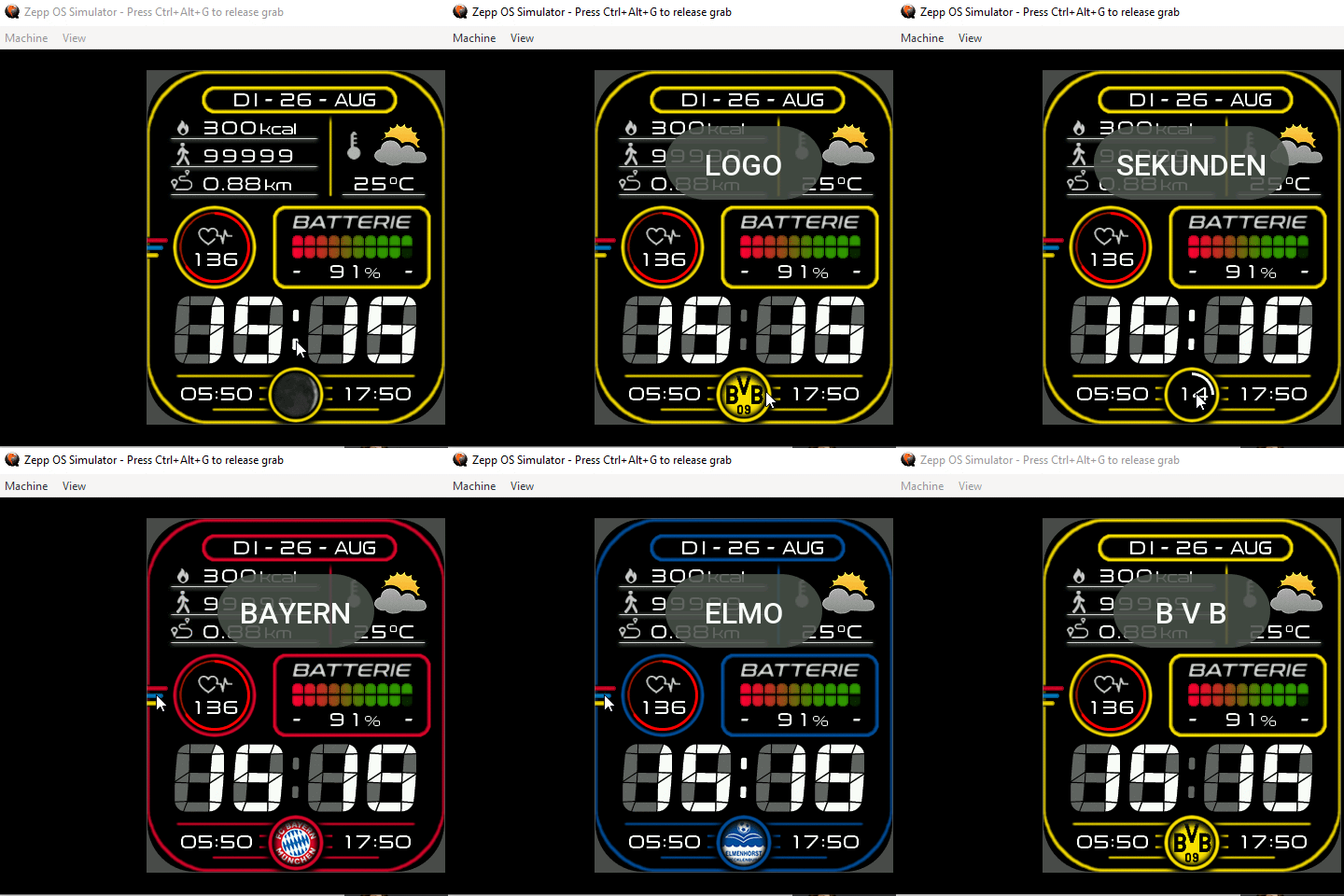
However, in my experience with the "Zepp OS Simulator," it simulates the watch face approximately 95% correctly.
I hope this test provides useful information.
PS. It seems the watchface doesn't have a preview image in watchface's pack.
ͼͽ To request please use the interrelated forum in action ͼͽ
Please do not PM to me for requests ported watchface.
Please do not PM to me for requests ported watchface.
-
Lattenknaller
- Posts: 157
- Joined: 09 Aug 2022, 08:43
- Location: Hamburg
- Has thanked: 60 times
- Been thanked: 132 times
- Contact:
Thank you very much.
When you have a quiet moment, could you explain to me how to get the Zepp simulator up and running? I tried something with VMWARE and LINUX, but failed miserably.
btw: could you also remove the Link from your quoted post, thank you
When you have a quiet moment, could you explain to me how to get the Zepp simulator up and running? I tried something with VMWARE and LINUX, but failed miserably.
btw: could you also remove the Link from your quoted post, thank you
-
asoo
- Posts: 2146
- Joined: 03 Jan 2019, 01:48
- Location: ͼͽ Thailand ͼͽ
- Has thanked: 414 times
- Been thanked: 2071 times
Lattenknaller wrote: 27 Aug 2025, 04:35Thank you very much.
When you have a quiet moment, could you explain to me how to get the Zepp simulator up and running? I tried something with VMWARE and LINUX, but failed miserably.
btw: could you also remove the Link from your quoted post, thank you
I installed it following the steps outlined on the Zepp website:
https://docs.zepp.com/docs/guides/tools ... r/download
Steps to take:
1. Install Zeus CLI following the instructions on the website.
https://docs.zepp.com/docs/guides/tools/cli/
2. Then, install Simlator following the instructions on the website.
https://docs.zepp.com/docs/guides/tools ... tor/setup/
I installed it on windows 10, So I'm not sure if it will work properly on VMWare.
I have successfully deleted the link you wanted me to delete.
ͼͽ To request please use the interrelated forum in action ͼͽ
Please do not PM to me for requests ported watchface.
Please do not PM to me for requests ported watchface.
-
frankh93
- Posts: 37
- Joined: 20 Jun 2025, 00:32
- Location: CDMX
- Has thanked: 23 times
- Been thanked: 3 times
- Contact:

@asoo sorry to mention you, but I have installed the Zepp Simulator with the Bip 6 fw (the model I own) but havent been able to load a watchface made on SashaCX75 tool... Could you explain how to load it into the emulator? Thank you beforehand
you should be doing something productive instead of reading this caption 
-
asoo
- Posts: 2146
- Joined: 03 Jan 2019, 01:48
- Location: ͼͽ Thailand ͼͽ
- Has thanked: 414 times
- Been thanked: 2071 times
Since the structure of the index.js and app.json files, including app.js, differs from the files provided by the Sasha editor,frankh93 wrote: 29 Aug 2025, 04:31@asoo sorry to mention you, but I have installed the Zepp Simulator with the Bip 6 fw (the model I own) but havent been able to load a watchface made on SashaCX75 tool... Could you explain how to load it into the emulator? Thank you beforehand
if you want to use the official Zepp simulator, you can do so in two ways:
1. Rewrite the entire script in the format specified by the simulator,
or
2. Copy some of the script in the index.js file provided by the Sasha editor into the index.js file of the simulator you created.
From "zeus," I won't go into further detail about using Zeus. If you can install the simulator, I think you should understand how to use Zeus.
Code: Select all
Base Options
-h, --help Display help information. [boolean]
-v, --version Display version number. [boolean]

For more information, see https://docs.zepp.com/

PS D:\zeus> zeus create EmtpyWatch
Updating devices, waiting...
? What type of application do you want to create? WATCHFACE
? Which OS version API to develop with? OS 1.0 API (Build products can run on devices with OS 1.0 and above)
? Which watchface template do you want to use? Empty
? Which platforms should this application be built on? Amazfit Bip 6
[ℹ] Fetching template...
[ℹ] Create application using the local template "Empty".

create \app.js
create \app.json
create \assets\390x450-amazfit-bip-6\icon.png
create \watchface\index.js


[✔] Project created successfully by "Empty" template.
Start installing dependency packages.

********* ******* ******* *******
//////**/ /**///// /**////** /**////**
**/ /** /** /** /** /**
**/ >***** /******* /*******
**/ /**/// /**//// /**////
**/ /** /** /**
******** /******* /** /**
//////// //////// // //

I'm all done. Now you can start your application.you'll find that index.js, app.json, and app.js
have the following format:
index.js
Code: Select all
WatchFace({
onInit() {
console.log('index page.js on init invoke')
},

build() {
console.log('index page.js on build invoke')
},

onDestroy() {
console.log('index page.js on destroy invoke')
},
})Code: Select all
{
"configVersion": "v2",
"app": {
"appId": 10013,
"appName": "Empty",
"appType": "watchface",
"version": {
"code": 1,
"name": "1.0"
},
"vender": "zepp",
"description": "Empty watchface",
"icon": "icon.png"
},
"permissions": [],
"runtime": {
"apiVersion": {
"compatible": "1.0.0",
"target": "1.0.1",
"minVersion": "1.0.0"
}
},
"targets": {
"390x450-amazfit-bip-6": {
"module": {
"watchface": {
"path": "watchface/index",
"main": 1,
"editable": 0,
"lockscreen": 1
}
},
"platforms": [
{
"name": "Pamir",
"deviceSource": 9765120
},
{
"name": "PamirW",
"deviceSource": 9765121
},
{
"name": "PamirW64",
"deviceSource": 10158337
}
],
"designWidth": 390
}
},
"i18n": {
"en-US": {
"appName": "Empty"
}
},
"defaultLanguage": "en-US",
"debug": false
}
Code: Select all
App({
globalData: {},
onCreate(options) {
console.log('app on create invoke')
},

onDestroy(options) {
console.log('app on destroy invoke')
}
})
Then, if you want to test the watch face created with the sahsa editor in the official simulator, copy some script from the watch face file created with the sasha editor and paste it into the index.js file you created with zeus, with the following requirements:
index.js ( zeus )
Code: Select all
// dynamic modify start (Only in the first part)

// Copy all the script ( editor ) between these two lines into this section.

// dynamic modify end  (Only in the first part)

WatchFace({

////////////////////////////
init_view() {

// Copy all the script ( editor ) at  init_view() { to },

},
//////////////////////////////

onInit() {
console.log('index page.js on init invoke')
},

build() {
console.log('index page.js on build invoke')

/////////////////////////////////////////////

//// do not  forget add this function
this.init_view();
/////////////////////////////////////////
},

onDestroy() {
console.log('index page.js on destroy invoke')
},
})
You'll see that the folder used to store the images, the watch face ID, and the watch face name are specified in this file.
Therefore, if you're testing on a simulator, I recommend editing the watch face ID and name, and storing the images in the correct folder specified in app.json. Also, make sure the images are in standard PNG format, not encrypted. And file image size must be more 1x1 pix
Code: Select all
{
  "configVersion": "v2",
  "app": {
    "appId": 10013,        <--------- "ID" recommended that you change it so that it doesn't overwrite the old watch face, as this will be copied over in the simulator.
    "appName": "Empty", <--------- "Name" recommended that you change it so that it doesn't overwrite the old watch face, as this will be copied over in the simulator.
    "appType": "watchface",
    "version": {
      "code": 1,
      "name": "1.0"
    },
    "vender": "zepp",
    "description": "Empty watchface",
    "icon": "icon.png" <--------- It is recommended to change it to match your preview file.
  },
  "permissions": [],
  "runtime": {
    "apiVersion": {
      "compatible": "1.0.0",
      "target": "1.0.1",
      "minVersion": "1.0.0"
    }
  },
  "targets": {
    "390x450-amazfit-bip-6": {   <----------------------- Folder that stores images
      "module": {
        "watchface": {
          "path": "watchface/index",
          "main": 1,
          "editable": 0,
          "lockscreen": 1
        }
      },
      "platforms": [
        {
          "name": "Pamir",
          "deviceSource": 9765120
        },
        {
          "name": "PamirW",
          "deviceSource": 9765121
        },
        {
          "name": "PamirW64",
          "deviceSource": 10158337
        }
      ],
      "designWidth": 390
    }
  },
  "i18n": {
    "en-US": {
      "appName": "Empty" <--------- "Name" recommended that you change it so that it doesn't overwrite the old watch face, as this will be copied over in the simulator.
    }
  },
  "defaultLanguage": "en-US",
  "debug": false
}
Then, when you use the "zeus dev" command, the program will add your watch face to the simulator.
To launch the simulator, you must first download the device file you want to simulate and select the correct device before running the watch face.
I've tested all of these steps and it work.
However, there may be others who have a better way to enable it.
The method I'm describing here is based on the fact that you've correctly installed Zeus and the simulator and they're working.
For installation instructions, please see the previous post.
viewtopic.php?p=21049#p21049
ͼͽ To request please use the interrelated forum in action ͼͽ
Please do not PM to me for requests ported watchface.
Please do not PM to me for requests ported watchface.
-
frankh93
- Posts: 37
- Joined: 20 Jun 2025, 00:32
- Location: CDMX
- Has thanked: 23 times
- Been thanked: 3 times
- Contact:
@asoo sorry to reopen this topic, been trying to get this working and so far I've been able to load it into the emulator but only the preview is showed, the screen on the emulator is black... could you check what I'm missing? (I leave the current project folder with the watchface I'm testing with in the attatchments). Thank you in advance
- Attachments
-
 test-wf.zip
- (436.07 KiB) Downloaded 69 times
you should be doing something productive instead of reading this caption
-
asoo
- Posts: 2146
- Joined: 03 Jan 2019, 01:48
- Location: ͼͽ Thailand ͼͽ
- Has thanked: 414 times
- Been thanked: 2071 times
This topic is about Bip5, but what you're asking about is a problem on Bip6.frankh93 wrote: 21 Dec 2025, 18:25@asoo sorry to reopen this topic, been trying to get this working and so far I've been able to load it into the emulator but only the preview is showed, the screen on the emulator is black... could you check what I'm missing? (I leave the current project folder with the watchface I'm testing with in the attatchments). Thank you in advance
Therefore, I won't be able to answer you in this topic because your question shouldn't be in this topic. So if you want to ask a question unrelated to this topic, please create a new topic.
As I've mentioned before, regarding simulators, if anyone wants to use one, I recommend understanding the simulator's capabilities and limitations first. That's what I did; I only looked for which commands or variables it could work with, not which commands or variables it couldn't.
Therefore, if you want to use a simulator to create a watch face, I recommend writing a step-by-step script using Zeus to find the simulator's requirements and limitations.
Creating a script from another program and then testing it on a simulator where you're unsure if it runs all the commands you created will make it difficult to troubleshoot problems.
Even if it's possible to check, finding the problems won't be easy. Therefore, if you want to write your own custom function and test it on a simulator, I recommend testing that function on simulator first to see if it has any problems or if it's compatible with the simulator.
P.S. This is the first problem you should check.
- If you're using a simulator, I recommend using only normal PNG image.
- create by use OS 1.0 API
- if you create by use OS2.0 API you can try edit your file ( app.json ) change it to OS 1.0 API
Code: Select all
     "permissions": [],
  "runtime": {
    "apiVersion": {
      "compatible": "1.0.0",
      "target": "1.0.1",
      "minVersion": "1.0.0"
ͼͽ To request please use the interrelated forum in action ͼͽ
Please do not PM to me for requests ported watchface.
Please do not PM to me for requests ported watchface.
Who is online
Users browsing this forum: No registered users and 1 guest