

For a successful installation, you need to connect your watch to PC or Mac using a native charging docking station.
There are two types of watch faces for these smartwatches:
.WFZ and .APK
Installing .WFZ watch faces format via PC
- Connect the smartwatch to your PC.
- Make sure you have all the drivers installed.
- After connection, the internal memory of the device will be available to you. Browse to the WatchFace folder.
- Put there all the watch faces that you would like to set on the watch.
- Disconnect the device from your PC.
- Now the watch faces will be available for installation in the watch's menu or the Amazfit application.
Setting .WFZ watch faces format via Mac
- Connect the smartwatch to your Mac.
- Make sure you have Android File Transfer installed.
- After connection, the internal memory of the device will be available to you.
- Put in the WatchFace folder all the watch faces that you would like to set on the watch.
- Disconnect the device from your Mac.
- Now the watch faces will be available for installation in the watch's menu or the Amazfit application.
Installing .APK watch faces format via PC
- Connect the smartwatch to your PC.
- Make sure you have all the drivers installed.
- Use one of the following programs:
- APK Installer : (Windows)
- TOOL ALL IN ONE : (Windows)
- Android Commander : (Windows)
- SDK Platform (command line) Tools : (Windows, Mac, Linux)
- If you have ADB (SDK Platform Tools) installed, you can use: adb install <packagename> command
Example: adb install LCD_BW_Digital_MZI_v0.4_Verge_5b60d41446581_01082018.apk
Watch this video instruction on how to install watch faces via APK Installer: - Disconnect the device from your Mac.
- Now the watch faces will be available for installation in the watch's menu or the Amazfit application.
Installing .APK watch faces format via Mac
- Connect the smartwatch to your Mac.
- Download and unzip the SDK Platform:
- SDK Platform (command line) Tools : (Windows, Mac, Linux)
- If you have ADB (SDK Platform Tools) installed, you can use: adb install <packagename> command
Example: adb install LCD_BW_Digital_MZI_v0.4_Verge_5b60d41446581_01082018.apk
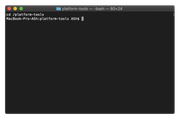
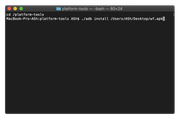
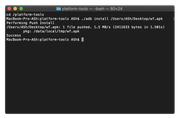
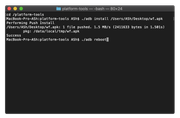
- Disconnect the device from your Mac.
- Now the watch faces will be available for installation in the watch's menu or the Amazfit application.
Uninstalling APK package
If you have ADB (SDK Platform Tools) installed, you can use command: adb install <packagename>
Example: adb uninstall com.marekzima.DigitalEssentials
Note! Package names can be found on each watch-face description!
You may also use our application or others, such as Amazmod, to install watch faces.
This manual is current at the time of writing.
If you notice any inaccuracies or mistakes, please, let us know