
Let's Try to make it easy :
Download Python For Win 10...
So Go There : https://www.python.org/downloads/release/python-381/
And Choose : Windows x86-64 executable installer
Or type directly the URL

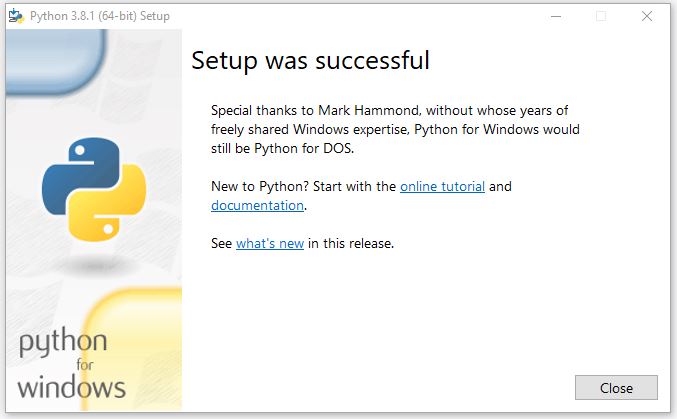
Install Python
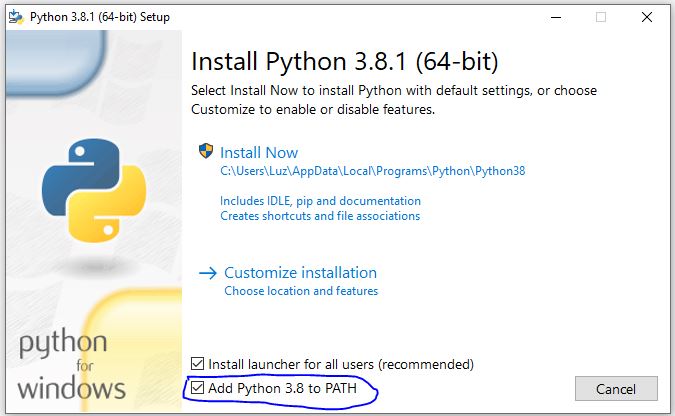
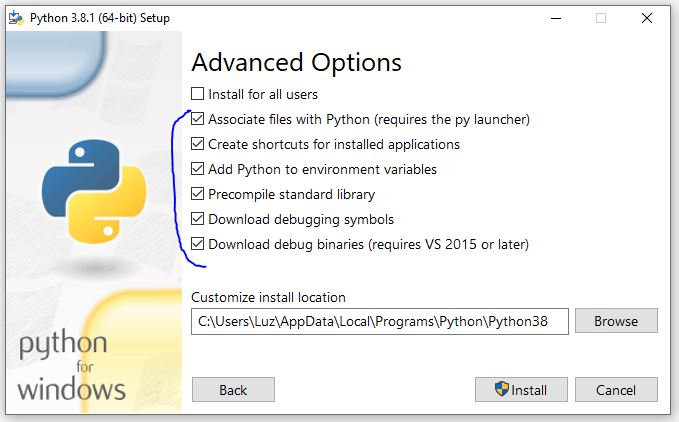
You can check for all user if you want
Open a command line terminal in Windows [ as admin... Because Privilege // Elevation // Admin right // Lonely User // I'm God ]
Right click on start You will see something Command Line shell ( as admin )
Disclaimer : Opening an Admin terminal means you "know" it's not the time to make some erase "joke" thing if you know what I mean..... if you are helping a friend.... But are you a friend ???

On this shell just type
Code: Select all
pip install --upgrade pip Code: Select all
pip install --upgrade pip 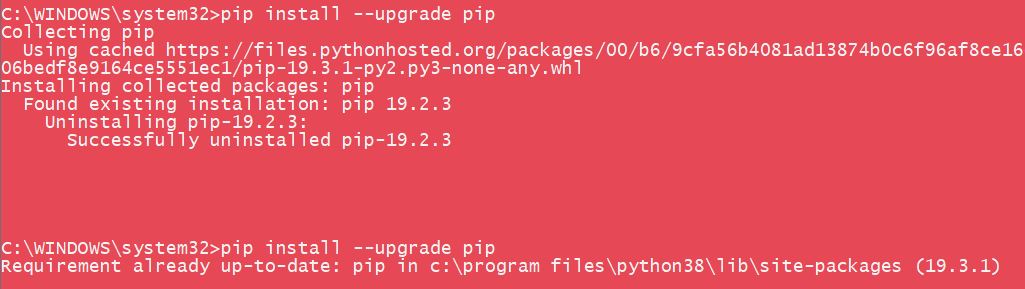
Last command line to write^^
Code: Select all
pip install pillow
It will install pillow, and normally you can use the Python version of the gui tool or use all the command line Py Tools that exist [ Just check the command to pack and unpack, Syntax command can be different ]
Grab The Pytool that fit your need :
For example go there to find dpenddi's Fork of Loly Py Tool
https://github.com/amazfitbip/py_amazfit_tools/branches
Choose the "Fix Array" [ More option to design your watchface like analogic Hand for Data ]
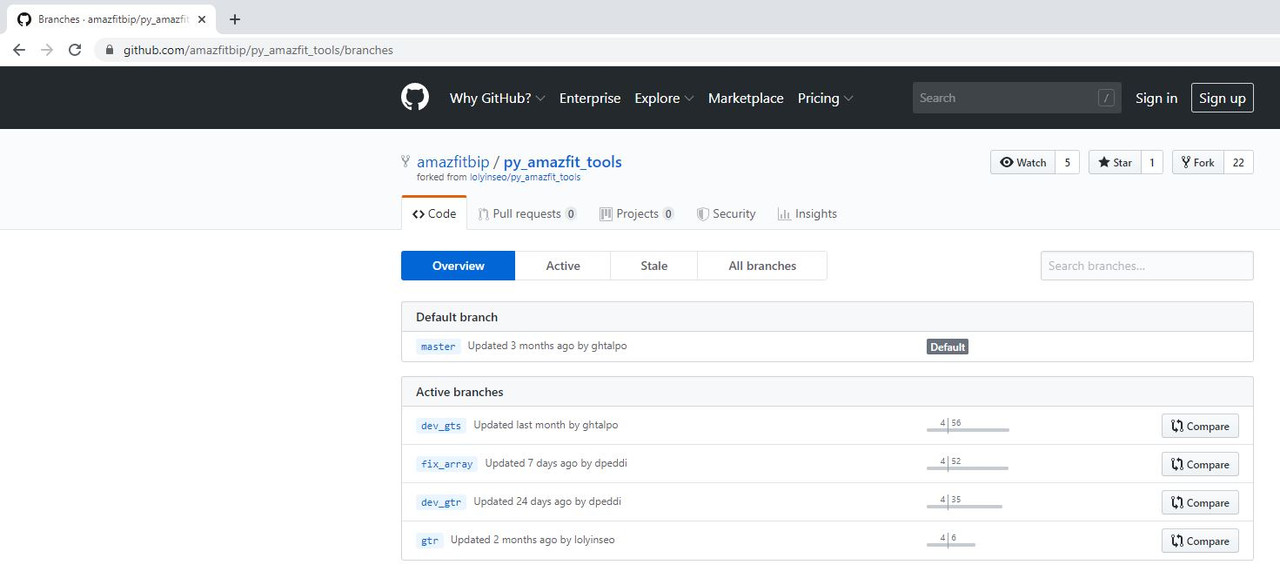
Download the zip file and Unzip somewhere

An go inside this Unzipped folder in command line [ I won't explain how to do it... honnestly -.-" ]
How to know what command line to use... Simply invoke the "Help"
Code: Select all
main.py -h
Once you have made the Python Installation it's easy to pack or unpack if the gui tool don't want to work...
To Unpack :
Code: Select all
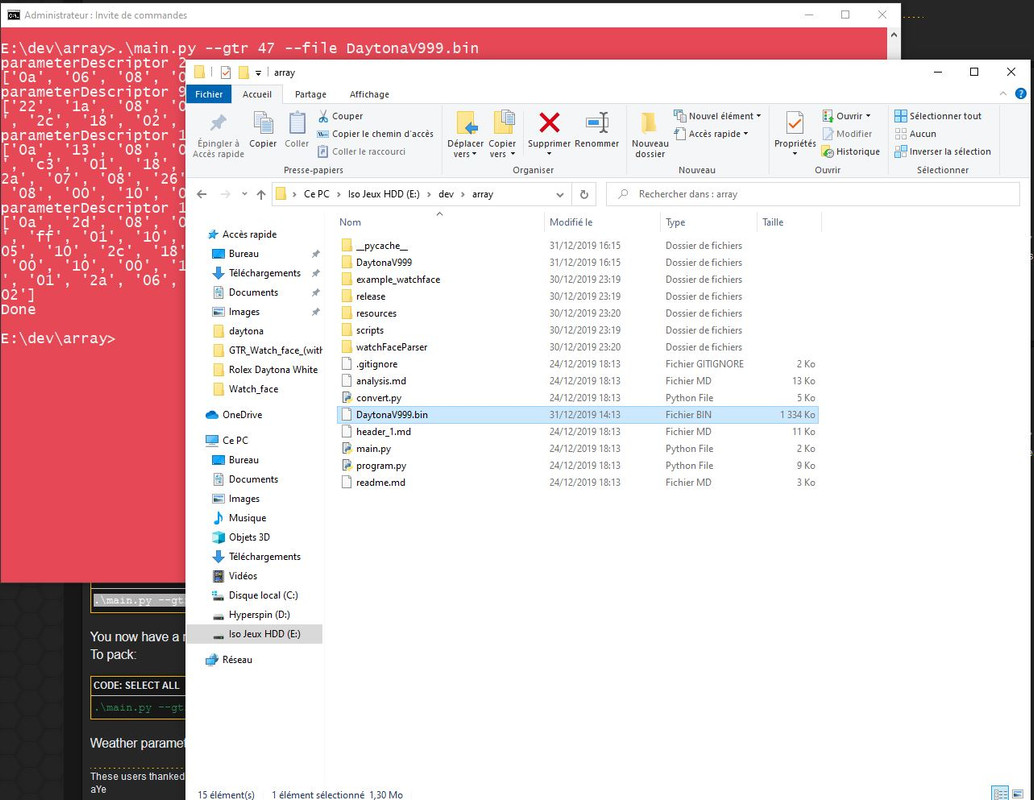
.\main.py --gtr 47 --file face.binmain.py is on "E:\" Drive on folder Dev\Array
E:\dev\array>.\main.py --gtr 47 --file DaytonaV999.bin
Important thing : The Bin File DaytonaV999.bin is also on "Array" Folder which is the Unzipped Directory of the Tool
So in E:\Dev\array [ main py si here and also the Bin File.... easier, if you don't want to Type the Full location of your bin file.... and Because [ 95% of the reason ] I'm so lazy.... ]
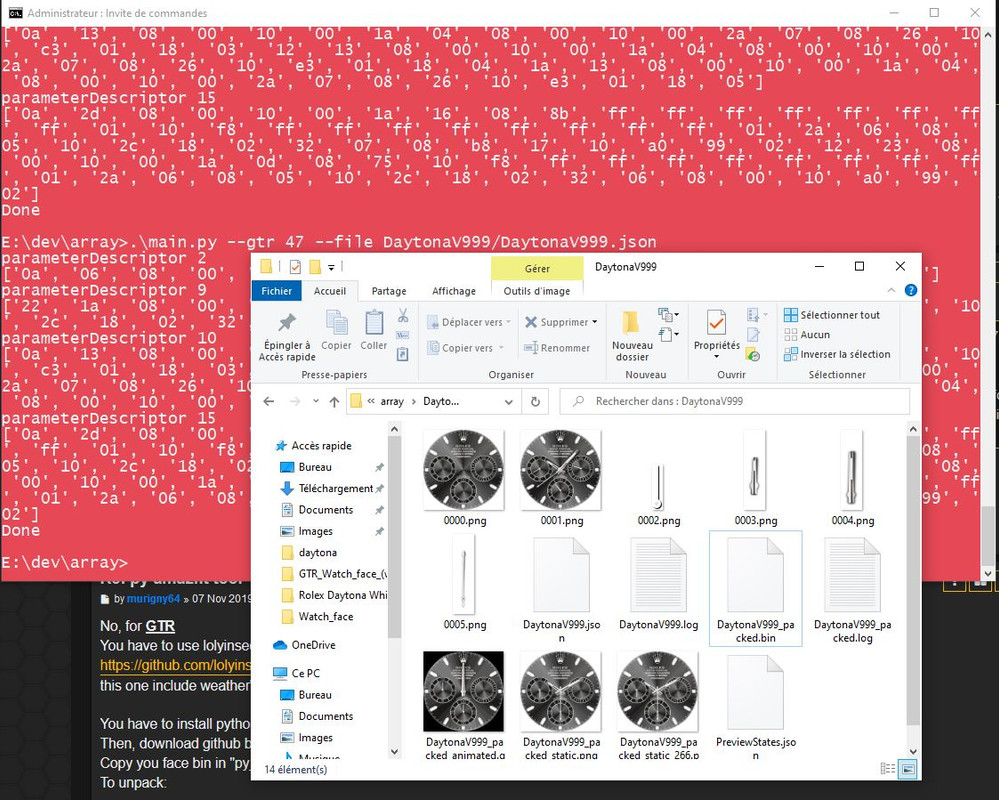
To Pack
Code: Select all
.\main.py --gtr 47 --file face/face.jsonE:\dev\array>.\main.py --gtr 47 --file DaytonaV999/DaytonaV999.json
If you're lazy^^ [like me] A gui editor is a nice tool to have : GTR_WatchFace editor for Windows by SashaCX75
You can find it here : viewtopic.php?f=29&t=1076&start=10
I only use it for the Json edit, personnally I prefer to Pack and Unpack in command line.